
Den här artikeln finns även på:
 Svenska
If you encounter problems when you try to send email messages from your iOS device (iPhone or iPad), you probably need to adjust some settings for the outgoing server (SMTP). This is done by following these instructions:
- Open the
Settingsapp and tapMail:
- Then tap
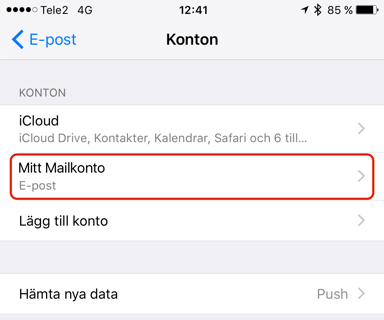
Accounts.
- Tap the email account where outgoing email currently isn’t working:

- Now tap
Accountto access settings for the account:
- Find the settings for
SMTP(a bit down):
- Tap the server designated
Primary Server. It should be the only one currently active:
- Now, make sure that you have the correct settings for
Host Name,Username, andPassword. Enter the same credentials as you have for your incoming email server. On the row forAuthentication, make sure thatPasswordis selected. If if says something else, tap it and selectPassword. TheHost Nameshould be the same as you have for your incoming email server. Information about what server name to use was sent out to the web hosting account’s owner when the service was created, and can also be found by following these instructions.UsernameandPasswordshould be the same as for the incoming email server as well. Do not type in xyz.oderland.com as the host name, replace it with the proper one according to the instructions in this bullet point.
- Make sure that the
Server Portis set to587. - To save the edits you’ve made, tap
Donein the top right corner.
You should now be able to send email messages! Consider rebooting your device and then trying to send a message.