
Den här artikeln finns även på:
 Svenska
Two-factor authentication (2FA) is something that’s used when you log in somewhere. One example where it can be used is Oderland Cloud. When activated, you need to enter two different factors. In total, there’s three factors: something you know (a password), something you have (a physical item, e.g. a credit card), and something you are (e.g. a fingerprint).
Normally, only one factor is used when you log in somewhere, and this is something you know (your password). Nowadays, it’s popular to add something you have as an additional factor, most commonly an app on your phone that can generate codes. Hence, your phone becomes the second factor (something you have). When logging in after activating 2FA, you need your password and a code that your app has generated.
2FA apps for mobile
There are several apps that can manage 2FA codes for you, we list a few here:
iOS apps
Authenticator
Authy
Google Authenticator
Step Two
Android apps
2FA Authenticator
Authy
Google Authenticator
Activate 2FA
To activate 2FA on your Cloud account, do the following:
- Begin by logging on to the control panel for Oderland Cloud.
- Click the tiny profile icon button near the top right and select
Configure 2FAin the menu.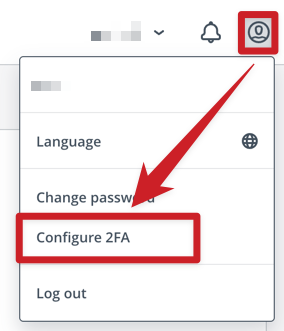
- In the pop-up window, scan the QR code using your 2FA app and then enter the code it generates into the field provided. Then click the
Configurebutton.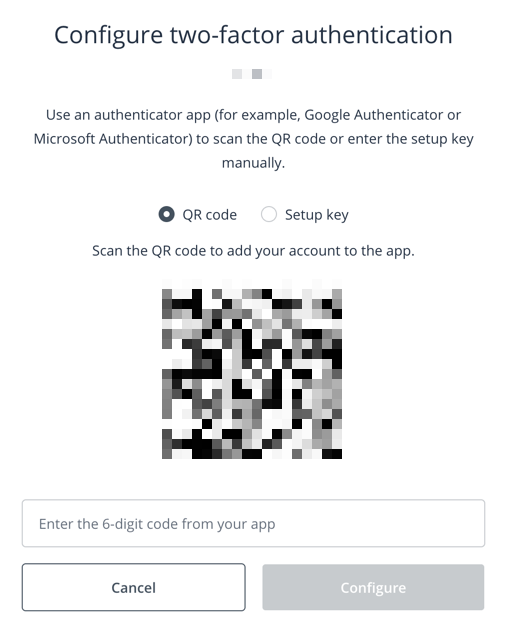
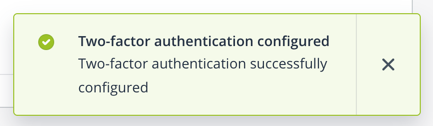
- You will now see confirmation that 2FA has been activated on your account.
Deactivate 2FA
To deactivate 2FA on your Cloud account, do the following:
- Begin by logging on to the control panel for Oderland Cloud.
- Click the tiny profile icon button near the top right and select
Reset 2FAin the menu.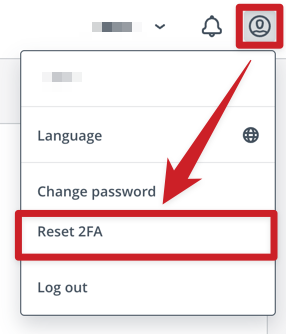
- In the pop-up window, enter your 2FA code from your 2FA app and click the Reset button.
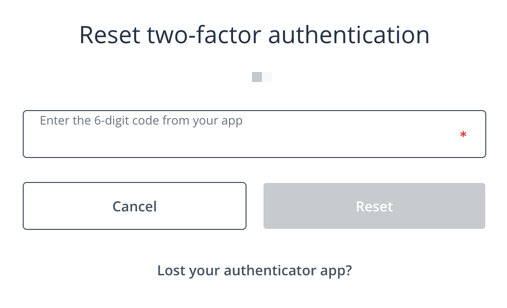
- You will now be logged out and see a confirmation stating that 2FA has been reset (i.e. deactivated).
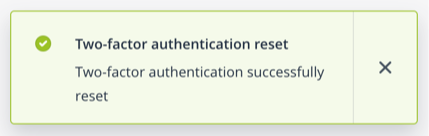
- You’ll now be able to log on to Oderland Cloud without using a 2FA code.
If you’ve lost both your 2FA code
If you’re no longer able to log on to Oderland Cloud due to a lost 2FA code (e.g. if you’ve got a new phone, uninstalled the 2FA app, etc), we can turn 2FA off for you.
To begin the process with deactivating 2FA via us, please send a message from the email address related to the client account where 2FA should be disabled for Oderland Cloud. Send the email to support@oderland.se.