
Den här artikeln finns även på:
 Svenska
There may be several reasons why you want to shut down your server in Oderland Cloud, for example if you do not intend to use it for a while. To shut down a server, follow the instructions below.
- Begin by logging on to the Oderland Cloud control panel.
- When you’ve logged in, go to
Compute(the cube-like icon) ->Virtual machinesin the menu to the left.
- Click on the row for the server you want to turn off and then click the
Shut downbutton.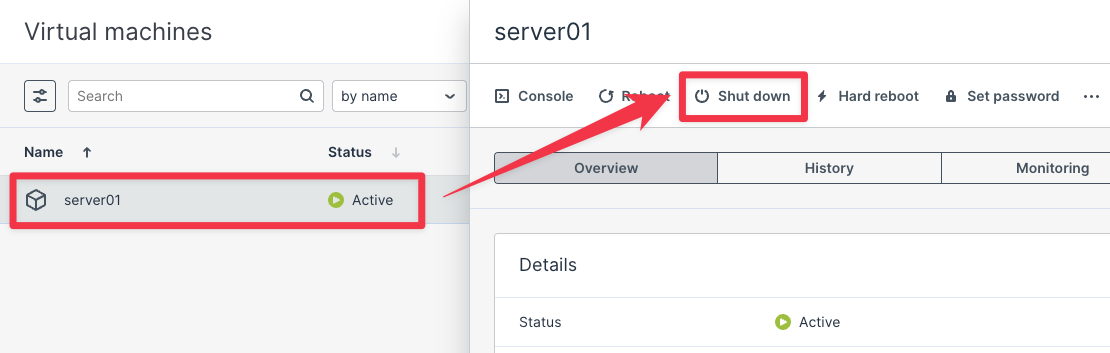
- A box will now pop up where you need to confirm the shutdown by clicking the
Shut downbutton.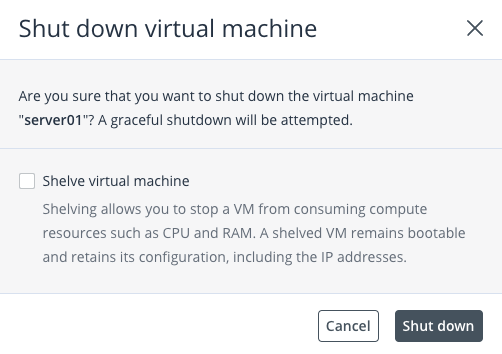

If you want to delete your server after shutting it down, you can read about how to do so here.