
Den här artikeln finns även på:
 Svenska
To be able to use Object Storage in Oderland Cloud, you need to add (at least) one user for this. If you no longer intend to use a certain user in Object Storage, you can also remove it. This guide describes how to do both.
Create Object Storage users
To add a new user for Object Storage, do the following:
- Begin by logging on to the Client Area.
- Click
CloudunderServicesin the menu to the left.
- Then click
Object Storagein the menu towards the top.
- If you do not have any users created previously, click on the big red
+ Add userbutton.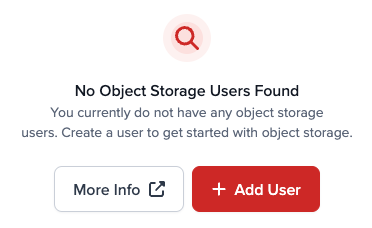
If you have users already created and want to add another one, click+ Add Object Storage Userin the top menu.
- In the box that pops up, confirm that you want to add a user by clicking
Confirm.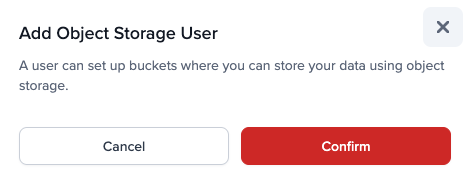
- Your user is now created and can be used to manage buckets.
Remove Object Storage users
To remove an Object Storage user, follow these steps:
- Begin by logging on to the Client Area.
- Click
CloudunderServicesin the menu to the left. - Then click
Object Storagein the menu towards the top. - Scroll down to the bottom of the page until you find the User section. Here you can click the
Remove Userbutton to delete the user.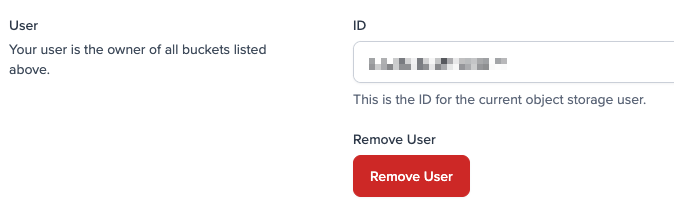
- In the box that pops up, tick the box that you confirm the deletion of the user and then click the
Confirmbutton.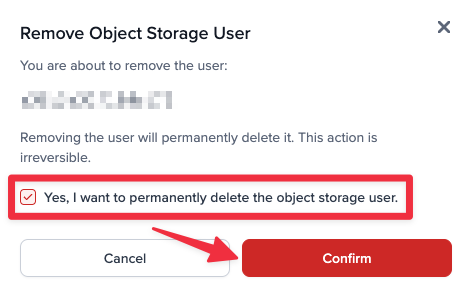
- The user is now removed.